
Running business applications on an older or overloaded computer can make even simple work frustrating. A remote desktop setup offers another option: instead of depending entirely on your local PC, you connect to a remote Windows server where applications run. Businesses that buy RDP for business can use this setup to handle demanding workloads while keeping their everyday computers free for other tasks.
This can help digital marketing agencies, accounting teams, developers, customer support departments, and businesses that regularly use resource-intensive software. The important part is choosing a server that matches your applications and workload.
How RDP Runs Business Applications Without Overloading Your PC
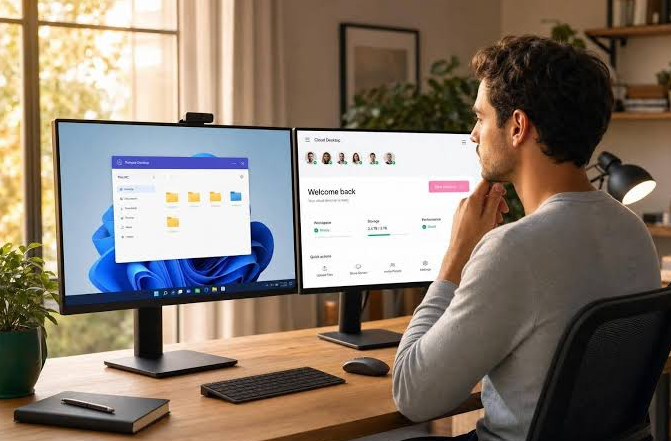
Remote Desktop Protocol (RDP) lets you access and control a remote Windows computer over the internet. Applications run on the remote server, while your local device displays the desktop and sends your keyboard and mouse inputs.
Think of it as using another computer from your own screen.
For example, imagine an employee working with large spreadsheets, accounting software, and several browser tabs. Running everything locally might consume significant RAM and processing power. With a properly configured remote desktop, the server handles much of that workload.
What Runs on the Remote Server—and What Your PC Still Handles
Understanding this difference helps set realistic expectations.
| Activity | Where it happens |
| Running Windows applications | Remote server |
| Processing application data | Remote server |
| Storing files on the server | Remote server storage |
| Displaying the remote desktop | Local computer |
| Sending keyboard and mouse inputs | Local computer |
| Maintaining the connection | Local device and network |
Your local computer still needs enough resources to run the remote desktop client and maintain a stable connection. However, it doesn’t need to perform all the processing required by applications running remotely.
RDP does not automatically make every application faster. Performance depends on server resources, application compatibility, network quality, and configuration.
Why Buy RDP for Business Applications?
A remote desktop environment can simplify everyday business operations, especially when employees use several applications at once.
Keep Resource-Intensive Tasks Separate from Everyday Work
Some business applications consume more system resources than others. Video editing tools, accounting software, database applications, development environments, and automation platforms can put considerable pressure on a regular computer.
A High-performance RDP server gives these applications access to dedicated CPU, RAM, and storage.
For example, a digital marketing professional might need multiple browser profiles, reporting tools, spreadsheets, and SEO applications open together. Instead of putting all that pressure on a personal laptop, the work can be handled through a remote Windows environment.
This is one reason businesses consider Buy RDP options when their existing computers struggle with demanding workloads.
Access Your Business Workspace from Different Devices
Another useful benefit is flexibility.
Your applications and work environment stay on the remote server instead of being tied to one physical computer. You can connect from another compatible device and keep working, as long as you have the required access and a reliable internet connection.
This is particularly helpful for:
- Employees working from home or different office locations.
- Freelancers managing several client projects.
- Agencies using shared business applications.
- Teams that need access to centralised files and tools.
- Business owners who travel frequently.
It also reduces the need to install and configure every application separately on every employee’s computer.
Which Business Applications Can You Run Remotely?
A remote Windows environment can support many types of business software, as long as the application is compatible with the server’s operating system and licensing terms.
Some common examples include:
| Application type | Typical business use |
| Accounting software | Invoicing, bookkeeping, and financial records |
| CRM applications | Customer information and sales management |
| Office applications | Documents, spreadsheets, and presentations |
| SEO and marketing tools | Website analysis, reporting, and campaign management |
| Development software | Testing, coding, and application management |
| Database tools | Managing and processing business data |
| Automation software | Running scheduled tasks and repetitive workflows |
If your business needs to run heavy software remotely, check compatibility before choosing a server.
Not every application supports a multi-user Windows Server environment. Some programs also require separate user licences, extra configuration, or specific hardware.
Before you buy RDP, list the applications you plan to use and check their system requirements. This simple step can help avoid compatibility problems later.
How to Choose a High-Performance RDP Server
Choosing a remote desktop plan based only on price can create problems later. A server that works well for basic office tasks might struggle when you run several demanding applications at once.
Before selecting a plan, understand what your workload actually requires.
Match CPU, RAM, and Storage to Your Applications
These three resources directly affect performance.
CPU: The processor handles application instructions and calculations. If your team regularly uses resource-intensive software, make sure you have enough processing capacity.
RAM: Memory becomes especially important when several applications or browser sessions run are once. A server with insufficient RAM may slow down as workloads increase.
Storage: SSD or NVMe storage can speed up application loading and file operations compared with slower options. Also consider how much space your business needs for files, databases, and backups.
A simple way to choose a server is to list the applications you plan to use, estimate how many people will connect at the same time, and check their published system requirements.
Don’t pay for resources you won’t use, but don’t choose an undersized plan to reduce monthly costs.
Check Software Compatibility, Licensing, and User Limits
Hardware is only one part of the decision.
Before choosing a plan, check:
- Whether your required applications support the Windows Server version.
- Whether the software permits remote or multi-user access.
- Whether additional application licences are required.
- Whether the server plan supports your expected number of users.
- Whether the Windows Server and Remote Desktop Services licensing requirements are covered.
For example, Windows Server Remote Desktop Services deployments may require appropriate RDS Client Access Licences (CALs), depending on the setup. Application licences may have separate requirements too.
A proper RDP Buy decision should consider these requirements alongside server specifications. Getting the details right before deployment can prevent unexpected costs and access problems later.
What Makes a Remote Desktop Connection Fast and Responsive?
A powerful server alone cannot guarantee a smooth experience. The stability and performance of the network link linking your device to the server are equally critical.
If the network is unstable, even a well-equipped server can feel slow.
Balance Server Capacity, Network Quality, and Location
There are three important factors to consider:
1. Server capacity
The CPU, RAM, storage, and number of active users should match the workload. If several people run demanding applications simultaneously, insufficient resources can affect everyone’s experience.
2. Network quality
A stable internet connection with low latency generally provides a more responsive remote desktop experience. High latency can make typing, scrolling, and opening menus feel delayed.
3. Server location
The physical distance between your device and the server can influence latency. Choosing a server region near your core audience is an effective way to lower network latency.
If you want Fast RDP without lag, focus on the full setup rather than only advertised server specs.
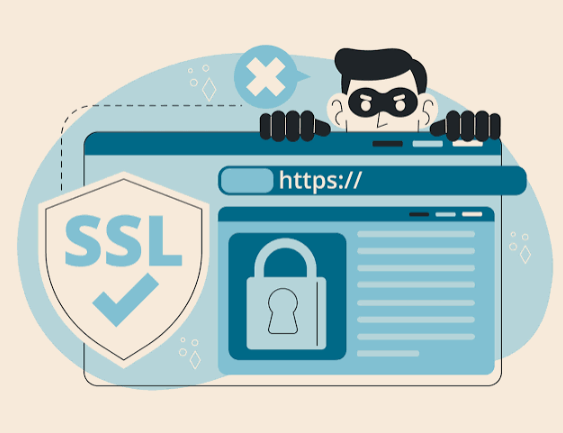
Security also deserves attention. Use strong, unique passwords, enable Network Level Authentication where supported, restrict access to trusted users, and avoid exposing RDP directly to the public internet without appropriate protection. A VPN or properly configured Remote Desktop Gateway can add another layer of access control.
Final Thoughts: Choose RDP That Fits Your Business Workload
Running business applications remotely can reduce the workload on local computers and give employees a consistent working environment.
However, the benefits depend on choosing the right server. Before deciding, consider CPU, RAM, storage, network stability, software compatibility, user requirements, and licensing.
If your business regularly runs demanding applications, Buy RDP for business only after you understand the resources your workload needs. A suitable remote desktop setup can make daily operations easier to manage, support flexible working arrangements, and help your team use its existing devices more effectively.
The goal isn’t simply to get a powerful remote server. It’s to find an environment that supports your actual work without creating unnecessary costs or performance problems.